March Updates. Example AI Workflows and the Visual Template Editor
Two updates this month, both aimed at the same problem: reducing the gap between "I want to do this" and actually doing it. One helps you build AI workflows faster. The other makes email template editing feel less like writing code.
Example AI Workflows you can use immediately
The AI Workflows page now includes three clickable example workflows that show you exactly how to describe automations in plain language. Instead of staring at an empty text box wondering what to write, you can click an example and see a fully-formed prompt pre-filled in the creation modal.
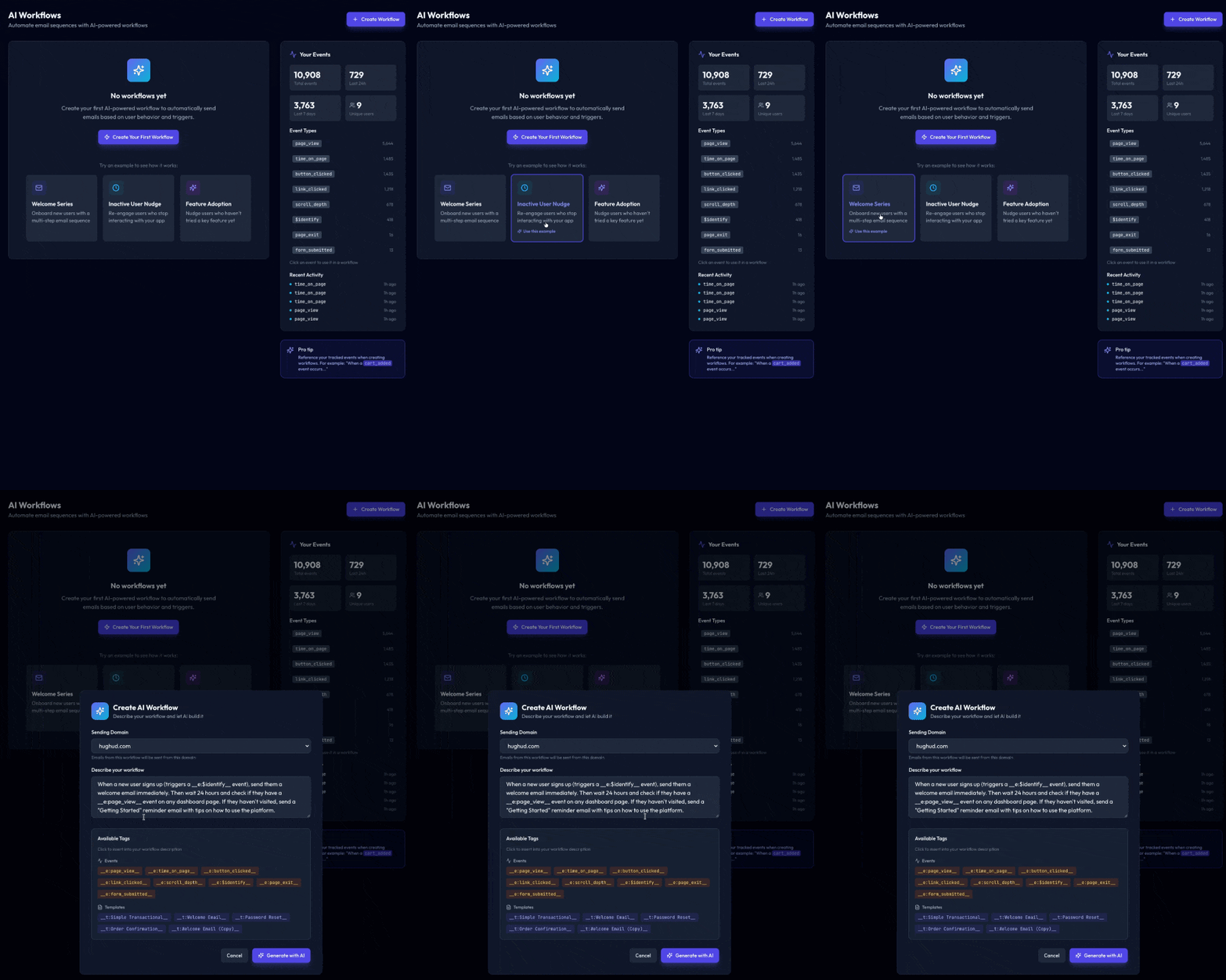
Here's what's included.
Welcome Series walks through a common onboarding pattern. When a new user signs up (triggering an __e:$identify__ event), the workflow sends an immediate welcome email, waits 24 hours, checks whether they've visited the dashboard, and sends a follow-up if they haven't. It's a practical example of combining event triggers with conditional logic and delays.
Inactive User Nudge targets re-engagement. It checks daily for users who were active more than 7 days ago but have gone quiet since. These are users who showed interest but dropped off, exactly the segment where a well-timed email makes the biggest difference.
Feature Adoption demonstrates how to nudge users toward a specific product feature. It waits 48 hours after signup, checks whether the user has visited a particular page, and sends a targeted email if they haven't. It's a pattern that works for any key action you want users to take.
Each example uses the same event tag syntax (__e:event_name__) and template references (__t:template_name__) that the AI workflow builder understands. They're designed to teach the syntax by showing it in context, not just documenting it.
Click any example, review the prompt, tweak it for your product, and hit generate. The AI takes it from there.
The Visual Template Editor
Editing email templates has always meant editing HTML. That's fine if you're comfortable with code, but it's a barrier for anyone who just wants to change some text. The new visual editor fixes this.
When you open any template, you'll now see three tabs: Visual, HTML, and Plain Text. The Visual tab renders your email exactly as it would appear in an inbox and lets you click on any text to edit it directly.
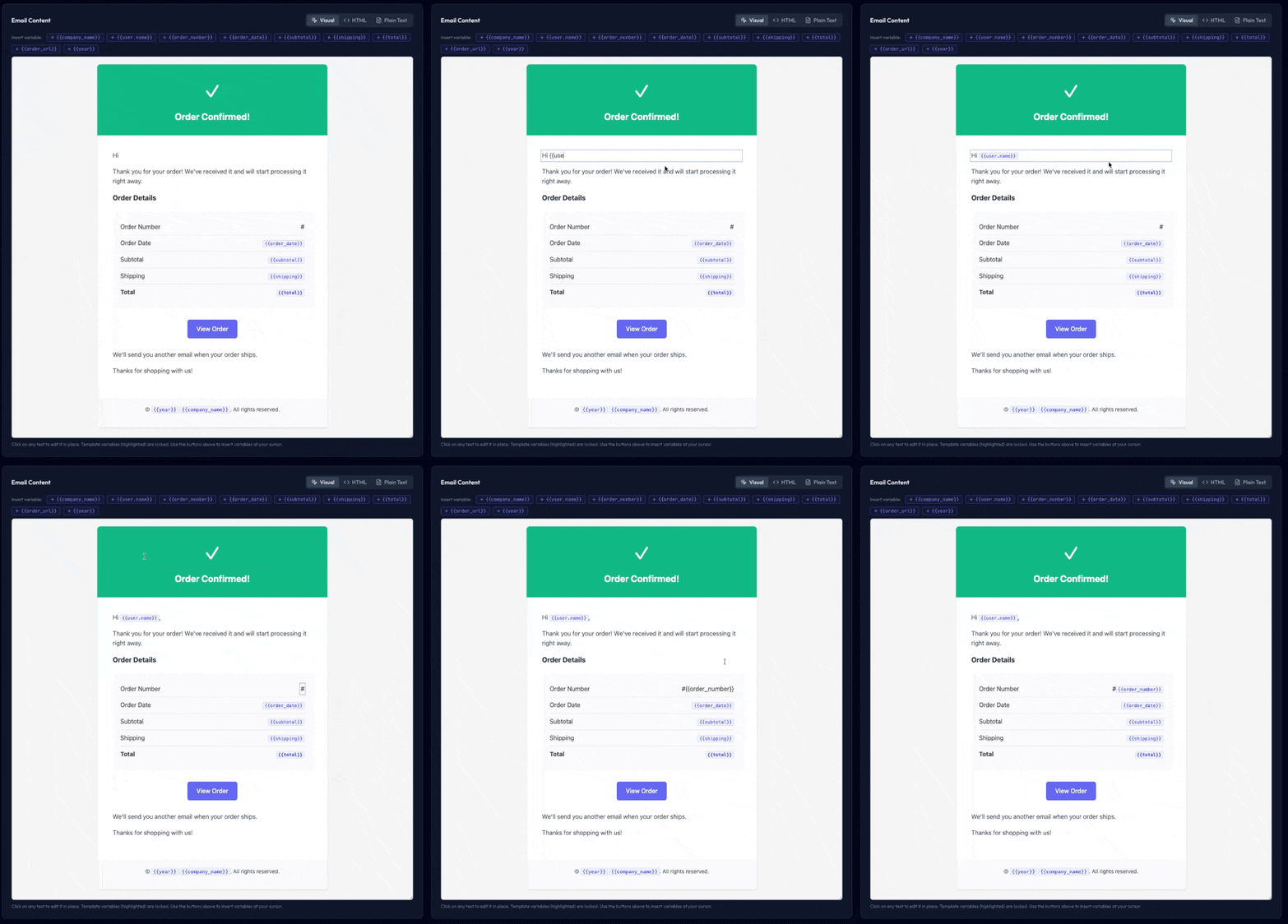
Here's what makes it work for email specifically.
Only text is editable. Email HTML is fragile. The layout depends on tables, inline styles, and carefully nested elements that most WYSIWYG editors would happily destroy. The visual editor identifies text-bearing elements (paragraphs, headings, table cells, links) and makes only those editable. The underlying structure stays locked. You can't accidentally delete a table row or break a layout by dragging something.
Template variables are highlighted and protected. Any {{variable}} in your template appears as a styled pill. You can see exactly where your dynamic content goes, but you can't partially edit or break a variable tag. Type a new {{variable}} and it'll automatically transform into a pill once you finish typing.
Paste is sanitised. Pasting from a rich text editor or webpage strips all formatting and inserts plain text only. This prevents the kind of invisible style pollution that causes emails to render differently across clients.
Changes sync in real time. Edit text in the visual view, switch to the HTML tab, and your changes are already there. The editor preserves your exact HTML structure, styles, and attributes. It only touches the text content you changed.
The visual editor doesn't replace the HTML editor. It sits alongside it. Power users can still drop into HTML for precise control. But for the common case of updating copy, tweaking a subject line, or reviewing how variables fit into the layout, the visual editor is significantly faster.
Getting started
Both features are available now in your dashboard. Head to the AI Workflows page to try the example workflows, or open any template in the Templates section and click the Visual tab.
No configuration needed, no new plans required. These are available on all accounts.