Workflow Property Filters. Target the Right Events, Not Just the Right Name
Until now, workflow conditions could check whether an event happened. "Did button_clicked occur?" Yes or no. That's useful, but it misses nuance. A user clicking "Sign Up" and a user clicking "View Docs" are both button_clicked events. They mean very different things.
Workflow conditions now support property filters, so you can target not just the event name but the specific data inside it.
Filter on what actually matters
When you add a Check Condition to a workflow, you'll see a new Property Filters section. Click "Add Filter" and you get three fields: a property key, an operator, and a value.
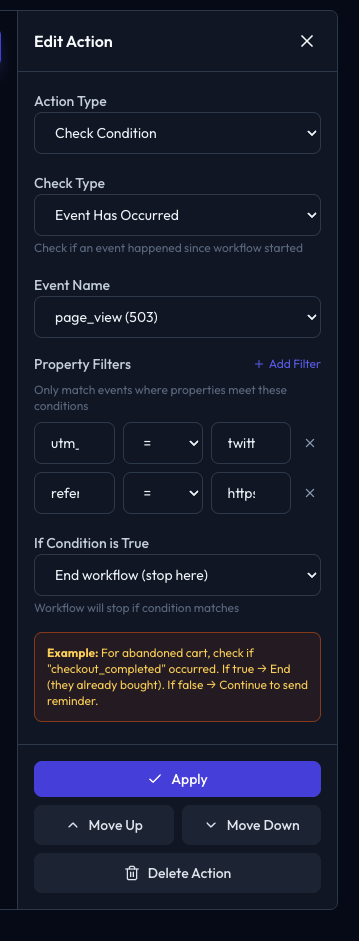
Say you want a workflow that only fires when someone clicks the "Upgrade Plan" button. Before, you'd trigger on button_clicked and hope for the best. Now you set the trigger to button_clicked and add a filter: text = Upgrade Plan. The workflow ignores every other button click.
Operators include equals, not equals, and contains. You can stack multiple filters and they all need to match. So text = Add Domain AND page = /dashboard/domains would only match that specific button on that specific page.
Property suggestions from your real data
You don't need to guess property keys or remember exact values. When you select an event name in the condition editor, MailJunky pulls the last 50 events of that type and shows you which properties exist and what values they contain.
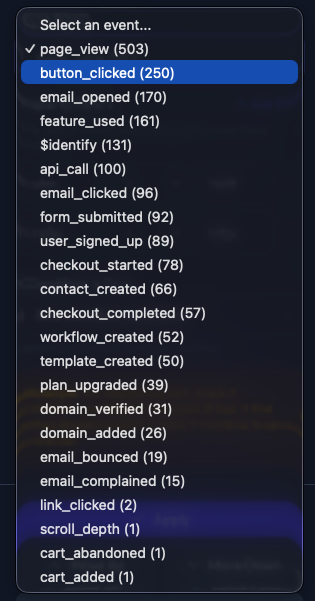
Pick from the dropdown or type your own. The suggestions are scoped to your workflow's sending domain, so you're seeing data relevant to the audience that workflow targets.
Switch domains without recreating workflows
Small but annoying one. If you created a workflow against the wrong sending domain, you used to have to delete it and start over. Now there's a domain switcher on the workflow detail page. Click the domain badge, pick a different verified domain, done. Your triggers, actions, and conditions all stay as they were.
Visual test timeline
When you test a workflow, the dialog now shows a step by step timeline of what happened. Each action gets a status icon: a spinner while it's running, a checkmark when it completes, a skip icon for actions bypassed in test mode (waits, webhooks, conditions). If something fails, you see exactly which step broke.
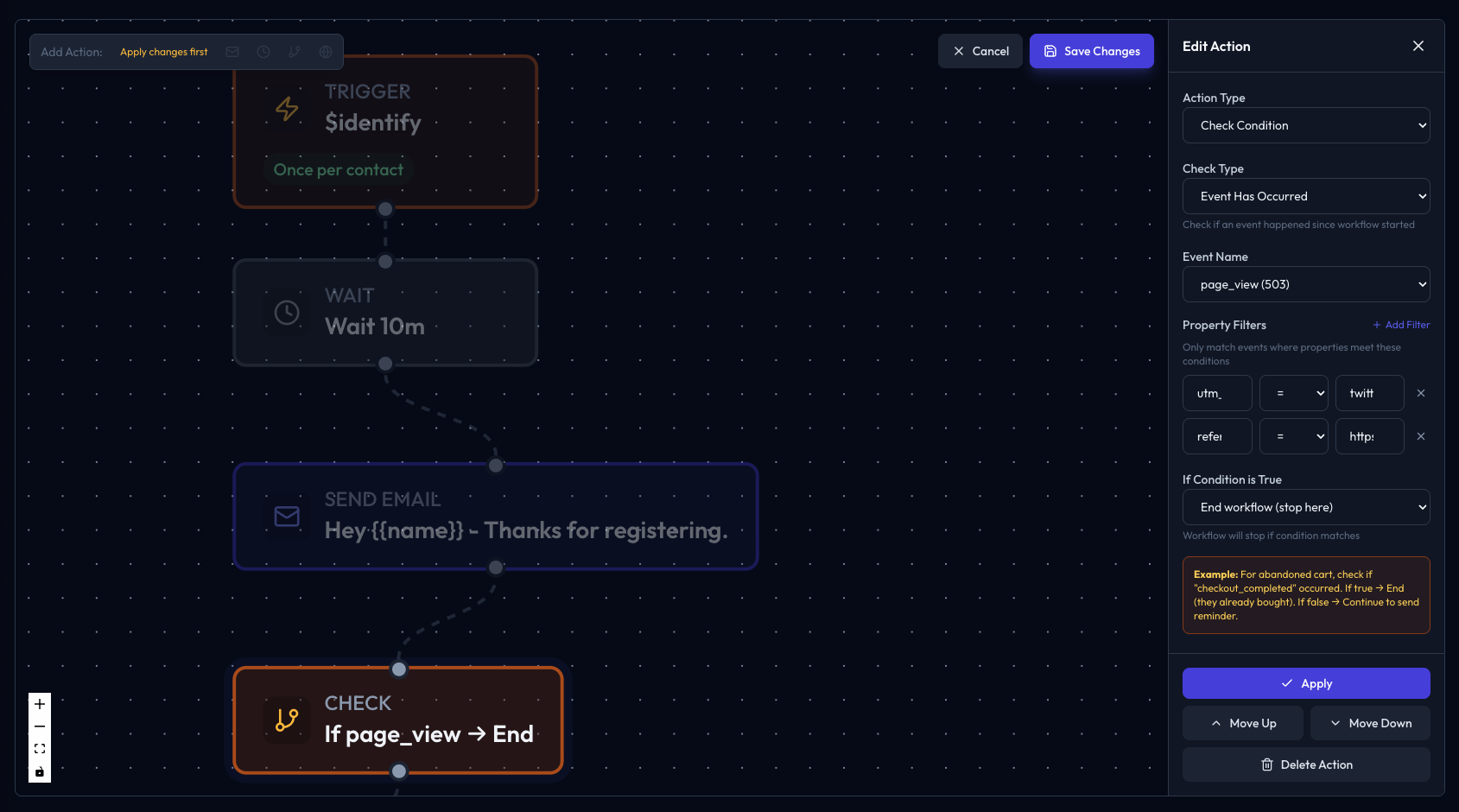
No more guessing whether the test email actually sent or wondering why nothing arrived. The timeline tells you what ran, what was skipped, and what went wrong.
The worker honours it all
Worth mentioning because it's the kind of thing that can go wrong. The background worker that processes live workflow runs fully supports property filters. When a condition step runs, it fetches recent events for that user, applies your property filters in memory, and evaluates the result. If you set text = Sign Up in the editor, that exact check runs in production. No disconnect between what you configure and what executes.
Available now
All of this is live in your dashboard. Open any workflow, add a condition, and start filtering on properties. No plan upgrade needed.
Open your workflows and give it a try.